Google Slides vs PowerPoint: Which One Should You Use?
Google Slides vs PowerPoint compared on price, Gemini vs Copilot, collaboration, offline use and file compatibility, with a clear pick for each use case.
By Leo Hußke9 min read
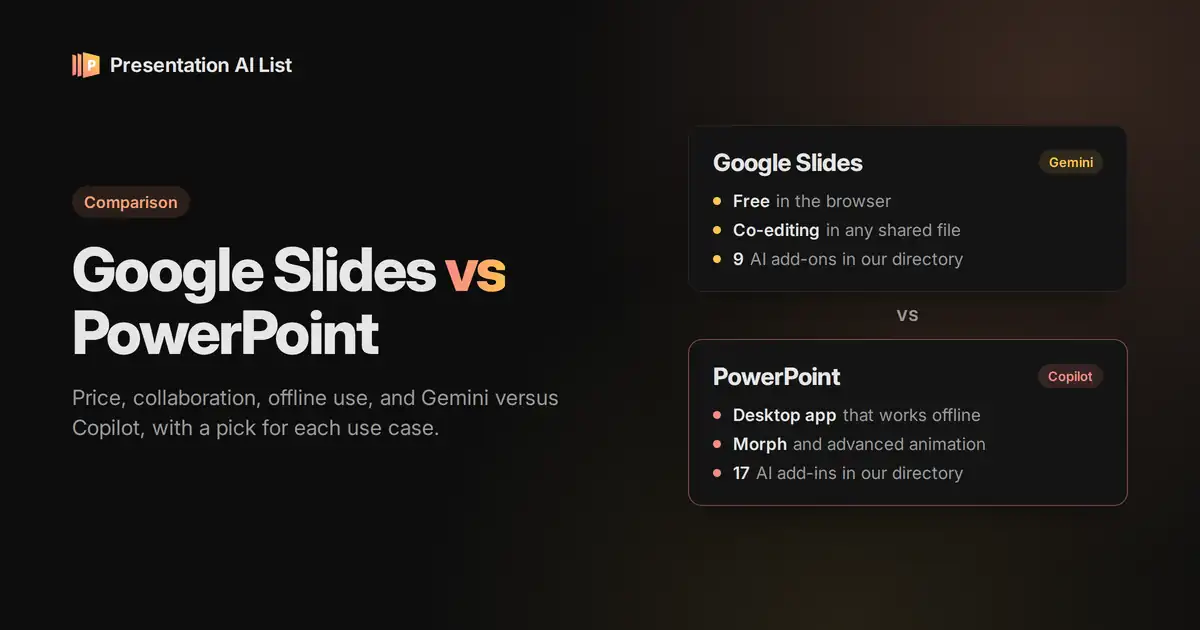
Google Slides vs PowerPoint comes down to where you work and who you work with. Google Slides is free in the browser and made for several people editing one deck at once. PowerPoint has the full desktop app, and companies on Microsoft 365 already pay for it. Both now have an AI assistant that drafts a whole deck. Gemini does it in Google Slides and Copilot does it in PowerPoint, and both need a paid plan. Below is the verdict by use case, then price, AI, collaboration, offline use, features and file compatibility, with prices taken from Google's and Microsoft's own pages.
Google Slides vs PowerPoint by use case
| If you | Pick | Why |
|---|---|---|
| Want a free tool with nothing to install | Google Slides | Anyone with a Google account can make and share decks in the browser |
| Edit one deck with several people at the same time | Google Slides | Co-editing works in any shared file. PowerPoint needs the file in OneDrive or SharePoint |
| Edit or present without internet | PowerPoint | The desktop app is installed on your computer. Slides needs Chrome or Edge and offline mode turned on in advance |
| Build decks with a lot of motion | PowerPoint | The Morph transition animates objects from one slide to the next |
| Work at a company on Microsoft 365 | PowerPoint | Copilot, your company templates and your OneDrive files are already there |
| Work at a company on Google Workspace | Google Slides | Gemini in Slides comes with Business Standard and higher plans |
| Want AI to build slides for the least money | PowerPoint | Microsoft 365 Personal at $9.99 a month includes Copilot in PowerPoint, with usage limits |
If you're still unsure, start in Google Slides. It costs nothing, and it opens and saves PowerPoint files, so you can switch later without redoing the work.
Google Slides is free, and PowerPoint's desktop app costs money
Anyone with a Google account can create presentations in Google Slides at no cost. The free account includes 15 GB of storage, shared across Drive, Gmail and Google Photos.
PowerPoint has a free version too. PowerPoint for the web runs in the browser with a free Microsoft account and 5 GB of OneDrive storage, and Microsoft says files must be saved in and shared from OneDrive. The desktop app for Windows and Mac is what you pay for. Office Home 2024 is a one-time $179.99 purchase for one PC or Mac. Everyone else gets PowerPoint through a Microsoft 365 subscription.
For teams, Google sells Slides inside Google Workspace business plans. Microsoft sells PowerPoint inside Microsoft 365. Here is what each plan costs in the US and whether it includes the AI that builds slides inside the editor.
| Plan | US price | AI that builds slides in the editor |
|---|---|---|
| Google account | Free | No |
| Google AI Pro | $19.99 a month | Yes |
| Google Workspace Business Starter | $7 per user a month, paid yearly ($8.40 monthly) | No |
| Google Workspace Business Standard | $14 per user a month, paid yearly ($16.80 monthly) | Yes |
| Google Workspace Business Plus | $22 per user a month, paid yearly ($26.40 monthly) | Yes |
| Microsoft 365 Personal | $9.99 a month or $99.99 a year | Yes, with usage limits |
| Microsoft 365 Family, up to 6 people | $12.99 a month or $129.99 a year | Yes, for the account owner only |
| Microsoft 365 Premium | $19.99 a month or $199.99 a year | Yes, with higher limits |
| Microsoft 365 Business Basic | $7 per user a month, paid yearly | Only with the Copilot add-on |
| Microsoft 365 Business Standard with Copilot | $23.50 per user a month, paid yearly | Yes |
| Microsoft 365 Business Premium with Copilot | $32 per user a month, paid yearly | Yes |
Business Basic includes PowerPoint for the web and mobile only, not the desktop app. Microsoft sells Copilot for business plans without it as the Microsoft 365 Copilot Business add-on, from $18 per user a month paid yearly, down from $21 until the end of 2026. The Microsoft 365 plan comparison lists the home plans and their AI limits.
Cheapest plans with AI that builds slides in the editor
Microsoft 365 and Google plans in US dollars a month. Business plans per user, paid yearly
- Microsoft Personal$9.99
- Workspace Standard$14.00
- Google AI Pro$19.99
- Microsoft Standard$23.50
Source: Google Workspace billing help, Google AI plans, Microsoft 365 plan pages
Show data
| Price per month | |
|---|---|
| Microsoft Personal | $9.99 |
| Workspace Standard | $14.00 |
| Google AI Pro | $19.99 |
| Microsoft Standard | $23.50 |
For one person, Microsoft is the cheaper way to get an AI assistant inside the slide editor. For a company, Google is cheaper per user, as long as the team works in Google Slides.
Gemini and Copilot both draft full decks now
Both assistants now go further than writing a single slide. They build a first draft of the whole deck in the app's own format, so you keep editing in Slides or PowerPoint.
What Gemini does in Google Slides
Since June 2026, Gemini in Google Slides can generate a full presentation from one prompt. You can add Drive files as sources and pick an existing deck whose style it should match. Gemini then asks follow-up questions and shows a slide-by-slide plan that you can edit before it builds the slides. The slides are normal, editable Google Slides.
Gemini also adds a single slide in your deck's theme, creates images, summarizes a presentation and rewrites text. Full-deck generation works on desktop and in English only.
You get Gemini in Slides with Google Workspace Business Standard and Plus, Enterprise Standard and Plus, and the consumer Google AI Pro and Ultra plans. Business Starter and free Google accounts don't include it.
What Copilot does in PowerPoint
Copilot in PowerPoint creates a presentation from a prompt or from a Word document. Work accounts with Microsoft 365 Copilot can also start from a PDF. Copilot summarizes a deck, answers questions about it, rewrites text boxes and suggests designs. Microsoft's Copilot in PowerPoint FAQ says some features need a Designer license, quality is highest in English, and Copilot needs an internet connection.
Copilot comes with Microsoft 365 Personal, Family and Premium at home, and with the business plans that have "with Copilot" in the name. On a Family plan, only the subscription owner gets the AI features. The Microsoft Copilot listing has more, and our post on Copilot in PowerPoint walks through it step by step.
Other assistants that work with PowerPoint
Anthropic's Claude also runs inside PowerPoint as an add-in, on the paid Claude Pro, Max, Team and Enterprise plans. It works in PowerPoint for the web, on Windows and on Mac. See Claude for PowerPoint for how to set it up. ChatGPT works differently, and Can ChatGPT Make a PowerPoint? covers what it can and can't do with slides.
Google Slides is better when several people edit one deck
Google Slides was built for shared editing. Several people can edit the same slide at the same time, and each person's cursor shows where they work. Collaborators can comment and assign tasks, depending on their access. Every change saves to Drive as you work, and the version history lets you restore an earlier version.
PowerPoint can do the same, with more conditions. Co-authoring works when the deck is stored in OneDrive or SharePoint. In the desktop app it also needs an active Microsoft 365 subscription and the latest version. Colored flags show the slide each person is working on. Co-authoring doesn't work on files protected with Information Rights Management.
In a company that already runs on Microsoft 365, these conditions are met by default. Everywhere else, Google Slides is the simpler way to work on one deck together.
PowerPoint works offline, and Google Slides needs setup first
The PowerPoint desktop app is installed on your computer and edits the files saved on it, with or without a connection. Copilot is the exception, because it needs internet.
Google Slides works offline only after you set it up while you're online. You need Chrome or Microsoft Edge, the Google Docs Offline extension, and the Offline setting turned on in Drive. Private browsing doesn't work, and only one Google account per browser profile can have offline access. Your company's admin can also turn offline access off.
If you present on planes, at venues with bad Wi-Fi or on locked-down computers, PowerPoint is the safer choice. If you're online most of the time, Slides' offline mode covers the rest, as long as you turn it on before you need it.
Pick PowerPoint for motion and Google Slides for Google data
PowerPoint's Morph transition moves, resizes and recolors objects from one slide to the next, and it works in PowerPoint for Microsoft 365, PowerPoint 2019 and 2021, the web and the mobile apps.
Google Slides connects to the other Google apps. You insert charts from Google Sheets and videos from YouTube or Drive. Gemini can also pull content from your Drive files into new slides.
Templates are not a reason to choose one or the other. Slidesgo, for example, offers its templates both as Google Slides themes and as PowerPoint files.
Google Slides opens PowerPoint files, with a few limits
Google Slides opens a PowerPoint file from Drive and can edit it in place. Google's guide for switching from PowerPoint to Google Slides says changes are saved to the original Office file. You can also convert a .pptx into a Google Slides file, up to 100 MB. To send a Slides deck to PowerPoint users, choose File, then Email as attachment, and attach it as PowerPoint or PDF.
A few things don't survive the trip. Google Slides ignores fonts embedded in an uploaded PowerPoint file and uses its own instead. Gamma's help center points this out for decks exported from Gamma, and it applies to any .pptx. Check fonts, animations and transitions after every conversion in either direction.
PowerPoint has more AI add-ins than Google Slides has add-ons
Both apps take third-party AI tools. In PowerPoint, you install add-ins from Home, then Add-ins. In Google Slides, you install add-ons from Extensions, then Add-ons, then Get add-ons, which opens the Google Workspace Marketplace. In both apps, a company admin can limit what users install.
PowerPoint has the larger choice. Of the 121 AI presentation makers in our directory, 91 work with PowerPoint and 42 work with Google Slides. 17 run inside PowerPoint as add-ins, 9 run inside Google Slides as add-ons, and 4 do both.
AI presentation makers in our directory by app
Number of listings, out of 121
- Work with PowerPoint91
- Work with Slides42
- PowerPoint add-ins17
- Slides add-ons9
Source: Presentation AI List directory data
Show data
| Listings | |
|---|---|
| Work with PowerPoint | 91 |
| Work with Slides | 42 |
| PowerPoint add-ins | 17 |
| Slides add-ons | 9 |
Browse them on AI for PowerPoint and AI for Google Slides, or narrow the list to PowerPoint add-ins and Google Slides add-ons. Here is how these tools connect to each app:
| Tool | In Google Slides | In PowerPoint | To start |
|---|---|---|---|
| Microsoft Copilot | No | Built in | A Microsoft 365 plan with Copilot |
| Plus | Add-on | Add-in | 7-day free trial, then from $10 a month paid yearly |
| SlidesAI | Add-on | Add-in | Free plan with 200 AI credits a month |
| MagicSlides | Add-on | Exports .pptx | From $80 a year |
| Gamma | Exports to Google Slides | Exports .pptx | Free plan adds a "Made by Gamma" badge to .pptx exports |
| Beautiful.ai | Exports to Google Slides | Exports .pptx | Editable exports on the Pro, Team and Enterprise plans |
| Canva | Upload the .pptx to Drive | Downloads .pptx | See Canva alternatives for similar tools |
Plus and SlidesAI make the most sense if your team uses both apps, since one subscription covers the add-on and the add-in. If you want a deck built outside either app, Gamma and Beautiful.ai export to both. The free AI presentation makers collection lists the tools you can try without paying.
Google Slides and PowerPoint side by side
| Feature | Google Slides | PowerPoint |
|---|---|---|
| Free version | Yes | Yes |
| Free version runs in the browser | Yes | Yes |
| Real-time co-editing | Yes | Yes |
| Co-editing without OneDrive or SharePoint | Yes | No |
| Offline editing | After setup in Chrome or Edge | Yes, in the desktop app |
| AI that drafts a full deck | Yes | Yes |
| Cheapest plan with that AI | $14 per user a month (Workspace), $19.99 a month (AI Pro) | $9.99 a month (Microsoft 365 Personal) |
| Opens and edits .pptx files | Yes | Yes |
| Store for AI add-ons or add-ins | Yes | Yes |
| AI tools in our directory that run inside it | 9 | 17 |
FAQ
Is Google Slides better than PowerPoint?
Google Slides is better for free use and for teams that edit one deck together. PowerPoint is better for offline work, advanced animation and companies that already pay for Microsoft 365. For AI that builds slides, Microsoft 365 Personal is the cheapest option for one person, and Google Workspace Business Standard is the cheaper option for a team.
Is Google Slides free?
Yes. Anyone with a Google account can use Google Slides at no cost, with 15 GB of storage shared across Drive, Gmail and Google Photos. Gemini in Google Slides needs a paid plan, such as Google AI Pro or Google Workspace Business Standard.
Is PowerPoint free?
PowerPoint for the web is free with a Microsoft account and 5 GB of OneDrive storage. The desktop app needs a Microsoft 365 subscription, from $9.99 a month for Personal, or the one-time Office Home 2024 purchase at $179.99.
Can Google Slides open PowerPoint files?
Yes. Google Slides opens .pptx files from Drive and can edit them in place or convert them, up to 100 MB. It replaces fonts embedded in the PowerPoint file with its own, so check the fonts after you open it.
Does Google Slides have AI like Copilot in PowerPoint?
Yes. Gemini in Google Slides generates a full editable presentation from a prompt, adds single slides, creates images and rewrites text. It comes with Google Workspace Business Standard and higher plans and with Google AI Pro and Ultra.
Can you use Google Slides offline?
Yes, after setup. Use Chrome or Microsoft Edge, install the Google Docs Offline extension and turn on the Offline setting in Drive while you're still online.